

ESP32, ESP8266 & Raspberry Pi, lesson 5 of 26
How to upload your first Code to ESP32 ?
You need to configure your environment before you can upload your code. So if you haven't done it yet, go to the previous article.
Now your environment is setup up and you are set to upload your first Code. On a new sketch go to Tools>Board>ESP32 Arduino> ESP32 Dev Module (choose the one that is your model)
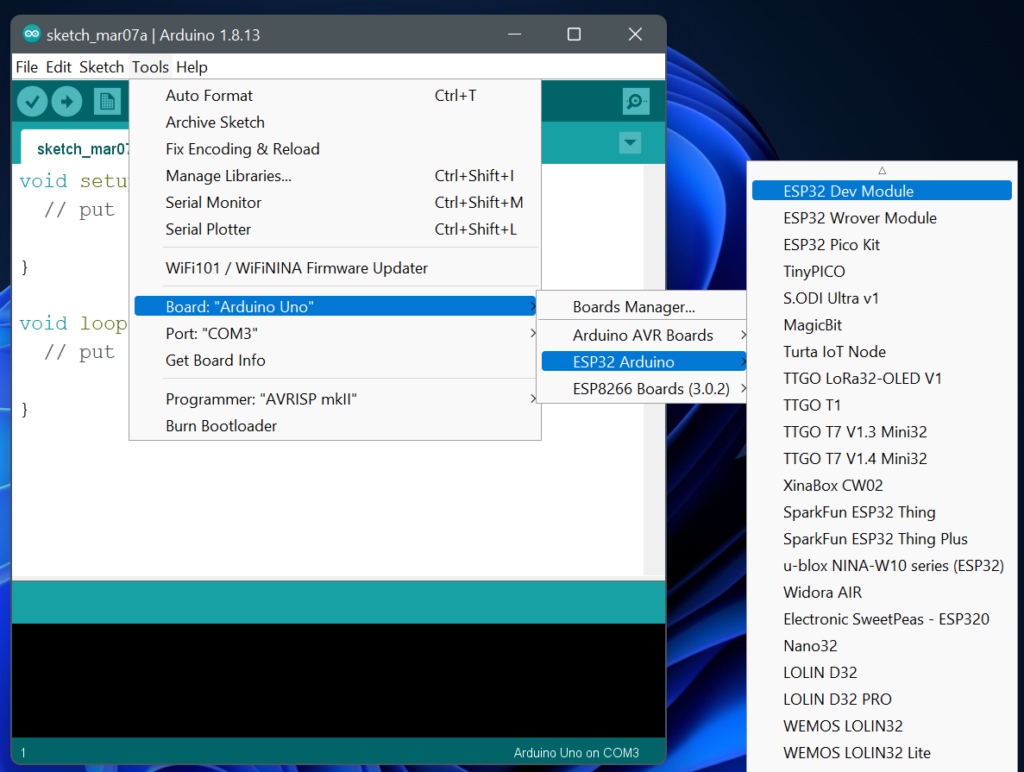
On selecting the board, you may have to upload the bare minimum sketch before working on any project. In most cases the supplier of the ESP32 does not give enough information about the board specification. I would recommend you to buy from sellers that mention about the details and also make sure its listed under the ESP32 Arduino Menu.
Now check the other configurations under tool. You will have several more options listed. Change them accordingly as shown below:
| Board | ESP32 Dev Module (or the one you are using) |
| Upload Speed | 115200 |
| CPU Frequency | 240MHz(WiFi/BT) |
| Flash Frequency | 80MHz |
| Flash Mode | QIO |
| Flash Size | 4MB (32Mb) |
| Partition Scheme | Default |
| Core Debug Level | None (Do not use unless you know what you are doing) |
| PSRAM | Enabled |
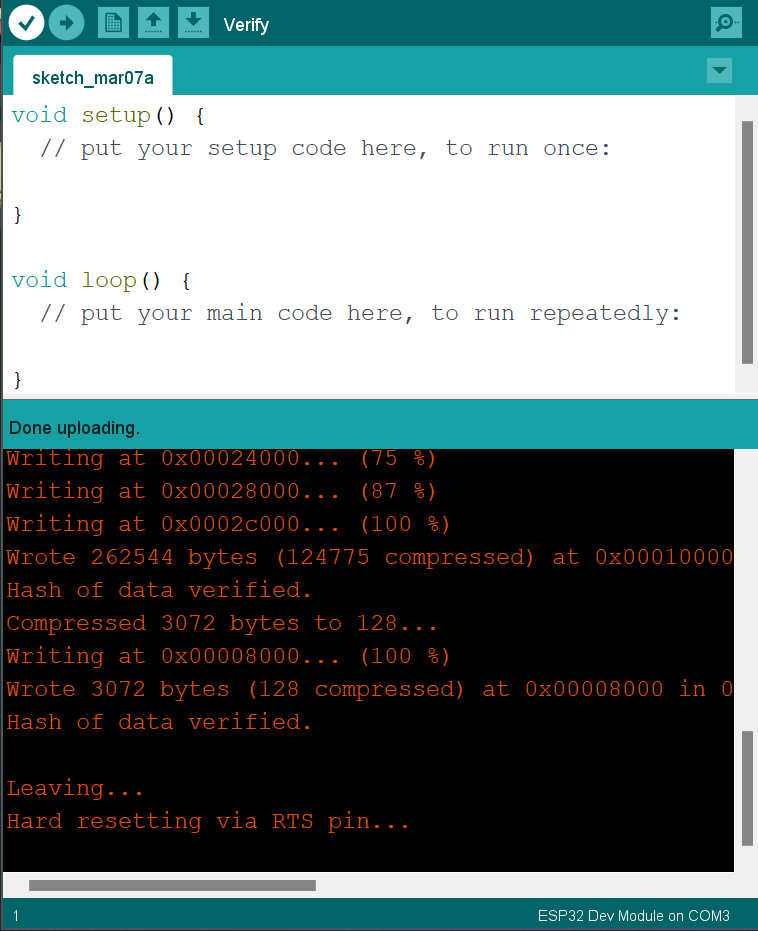
If you can upload the Bare Minimum or a blank sketch and you see a message "Hard resetting via RTS pin". It means your code is successfully uploaded and your configurations are correct.
Now you are all set to make more projects wireless projects with the ESP32.