

ESP32, ESP8266 & Raspberry Pi, lesson 22 of 26
How to use Bluetooth on the ESP32 ?
Introduction
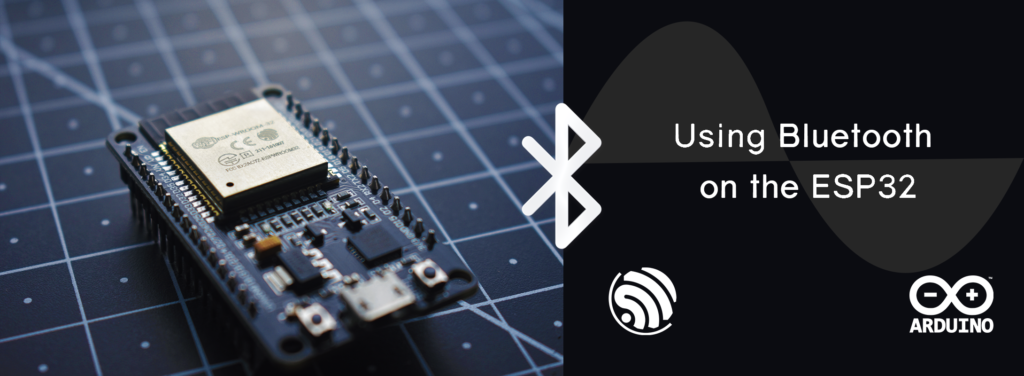
The ESP32 comes in-built WiFi, Bluetooth and BLE (Bluetooth Low Energy). We will generally use more of WiFi with ESP32 but the Bluetooth and BLE are very handy in many cases. Bluetooth is a standard for the short-range wireless interconnection of mobile phones, computers, and other electronic devices. Bluetooth has had a lot of evolution in the past decade. The entire evolution has improved on the connection speed to the power consumption by the Bluetooth.
Simplified – Bluetooth is short range wireless connection which allows 2 or more devices to communicate, share files, control accessories and so on. Bluetooth 1.0a and 1.0b featured peak data transfer speeds of around 732.2 kb/s, with a connection range of 10m or 33ft. Version 1.2 improved on this by increasing the data transfer speed to 1 Mbps.
Working Principle
We will use the Bluetooth Classic which is similar to the Bluetooth module HC- 06. It uses standard serial protocol functions. We will be sending and transmitting data between the ESP32 and an Android Phone.
Note: This Example Project is only with an Android device.
We will need a Bluetooth terminal application to receive the data and then send data to our ESP32.
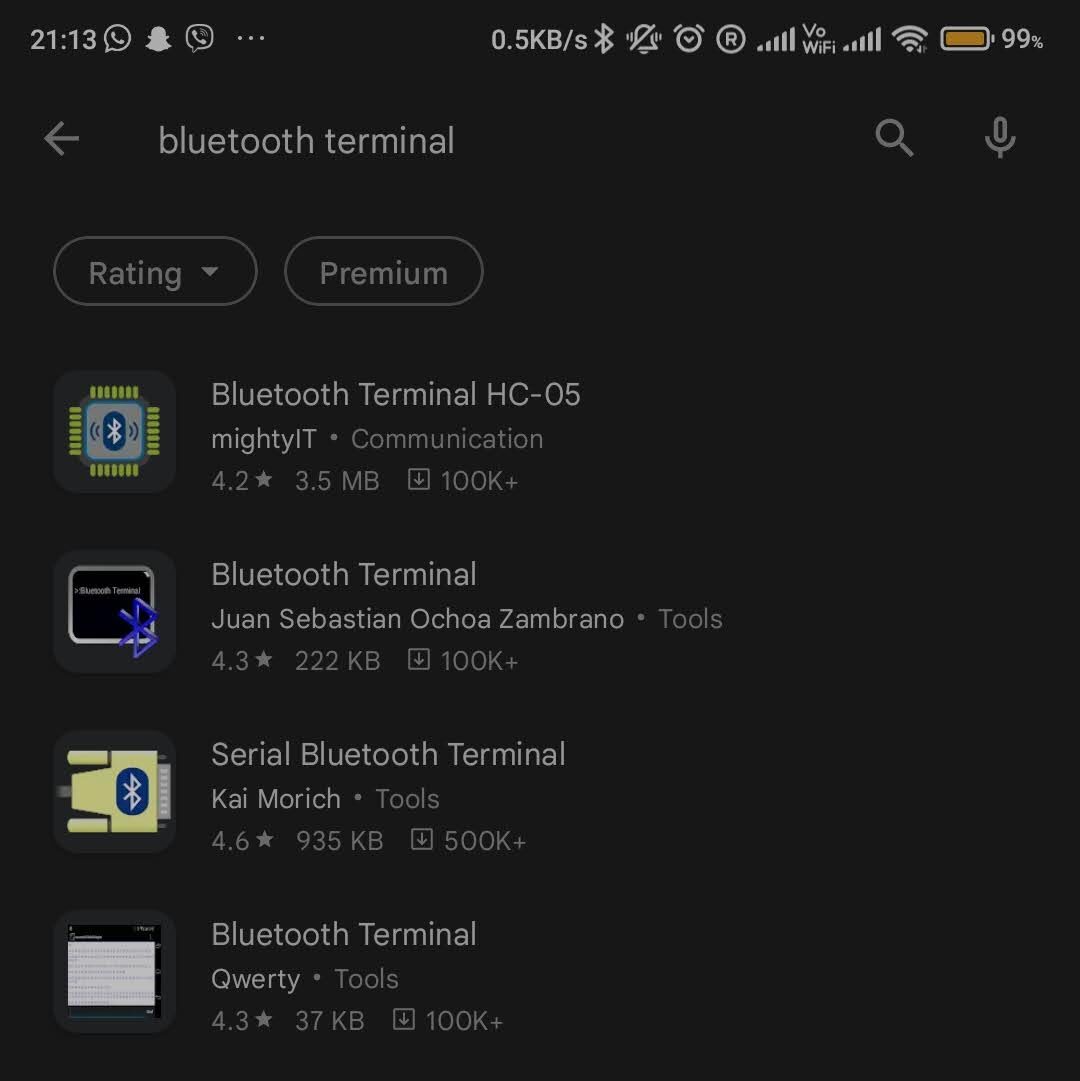
Please find a terminal application. Here is a list of a few recommended Android application.
- Bluetooth Terminal HC-05 by mightyIT
- Bluetooth Terminal Juan Sebastian by Ochoa Zambrano
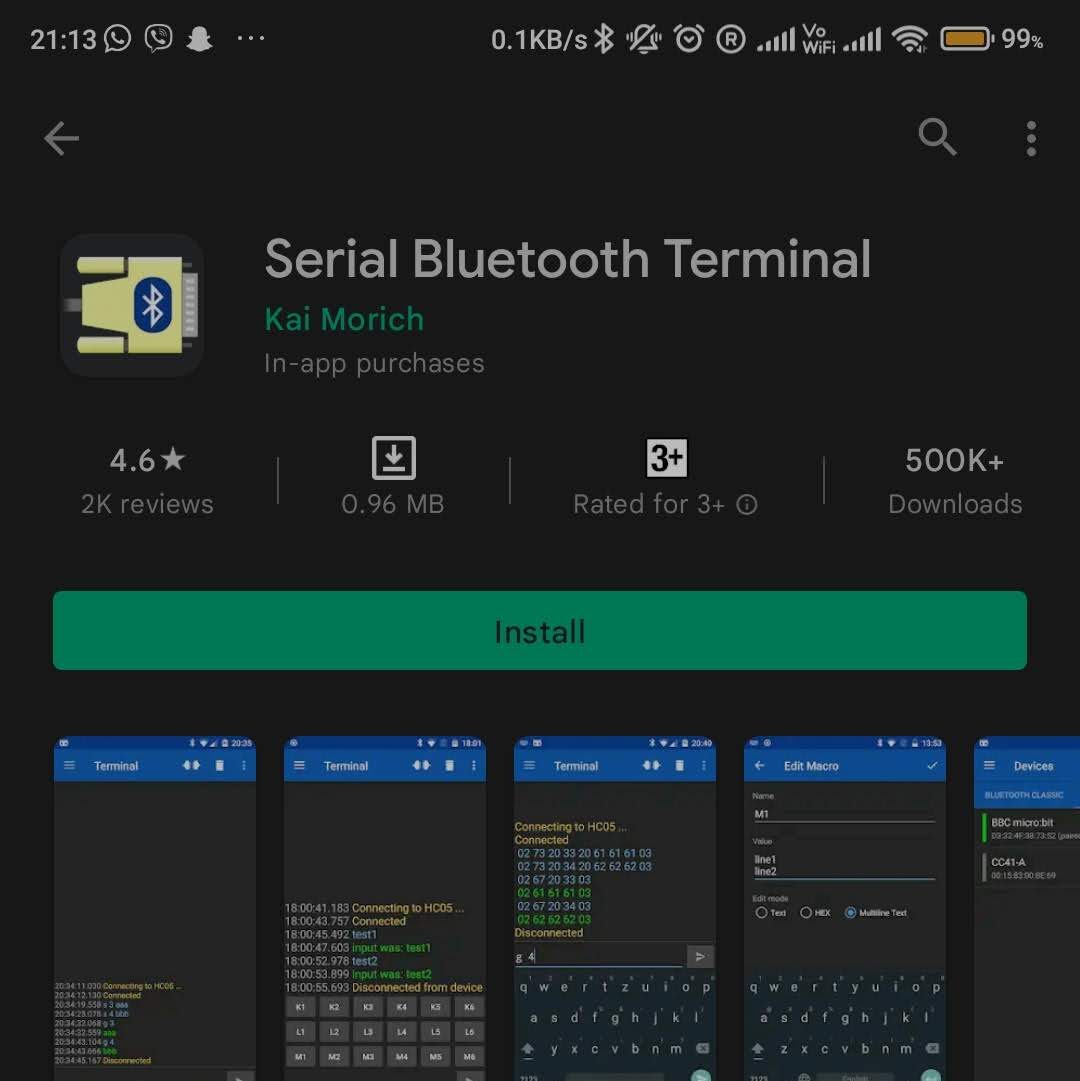
- Serial Bluetooth Terminal by Kai Morich (recommended)
- Arduino Bluetooth Terminal by Frederik Hauke
Components Required
- ESP32 DEVKIT V1
- Android Smart Phone with Bluetooth Terminal Application
- LED x 1
- 330 Ω x1
- Breadboard x 1
- Jumper Cables
How to install the Serial Bluetooth Terminal application?
 Search "Bluetooth Terminal"
 Install any Bluetooth Terminal Application
Install any Bluetooth terminal app from the play store for your smartphone. We have listed a few recommended above. After the installation of the application, you can now code the ESP32 the Bluetooth serial example present in the Arduino IDE. You can go to File > Examples > BluetoothSerial > SerialtoSerialBT.
Or else you can copy paste the below code.
Code - Simplified
#include "BluetoothSerial.h"

#if !defined(CONFIG_BT_ENABLED) || !defined(CONFIG_BLUEDROID_ENABLED)
#error Bluetooth is not enabled! Please run `make menuconfig` to and enable it
#endif

BluetoothSerial SerialBT;

void setup() {
  Serial.begin(115200);
  SerialBT.begin("ESP32-Simplified"); //Bluetooth device name
  Serial.println("You can now start pairing, you device has turned ON successfully");
}

void loop() {
  if (Serial.available()) {
    SerialBT.write(Serial.read());
  }
  if (SerialBT.available()) {
    Serial.write(SerialBT.read());
  }
  delay(20);
}
- After uploading the code on your ESP32.
- Search for the Bluetooth device. If you have taken the default code from the Arduino example, your Bluetooth name will be ESPtest.
- Select your ESP32 Bluetooth and Pair with it.
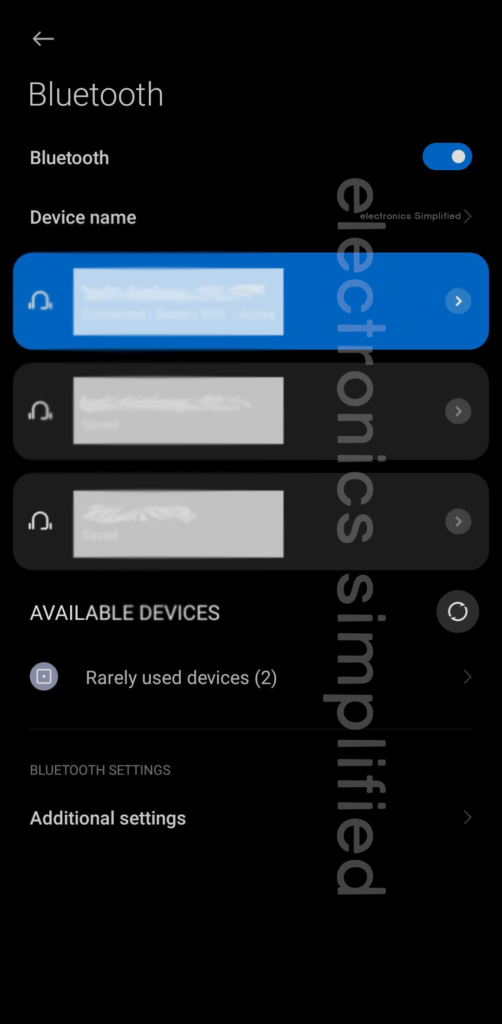 Under Bluetooth Settings : Search for ESPtest bluetooth name
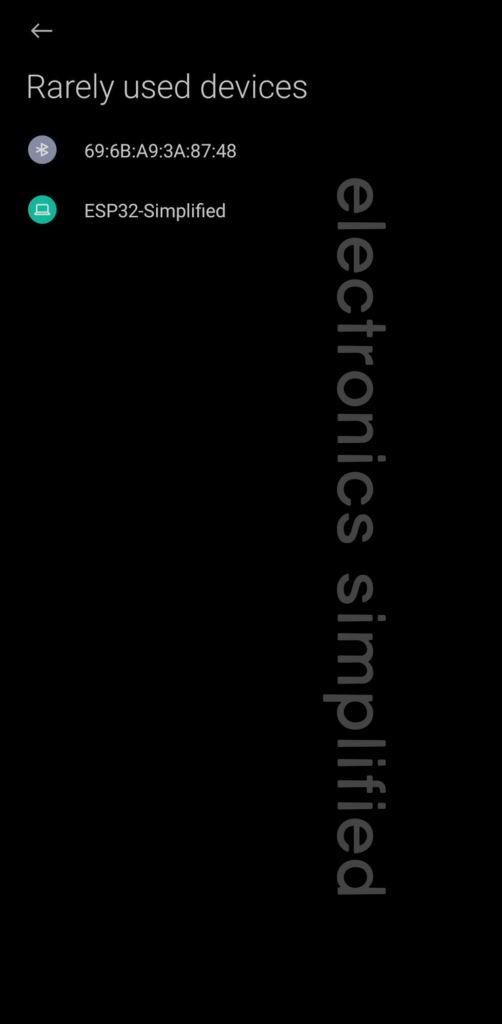 My Bluetooth is named : ESP32 Simplified and is listed under rarely used devices/
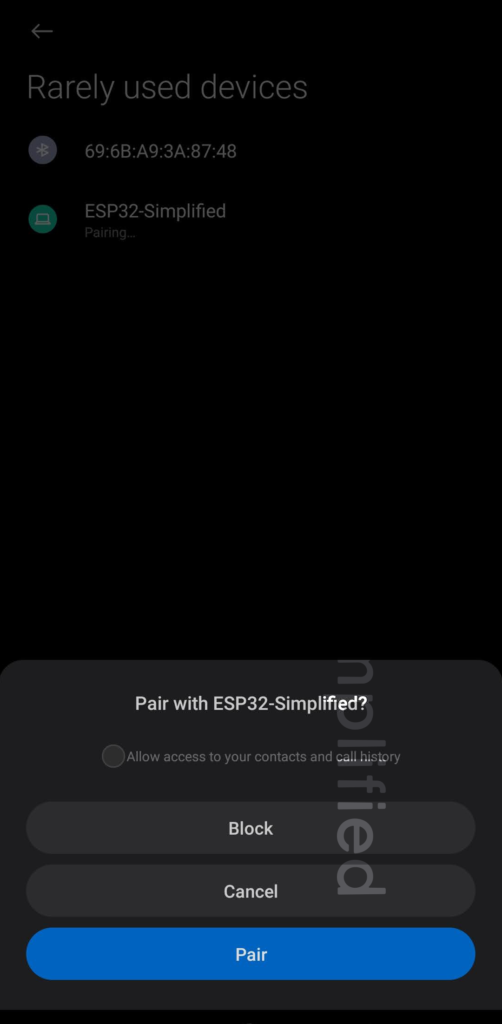 Pair the device with your smartphone.
-
After that you can go to the Terminal App and Connect to the ESP32. The device should now be listed there.
-
You will see a Message that the Application is trying to connect to the ESP32.
-
On establishing a successful connection. A message will be displayed that the device is connected.
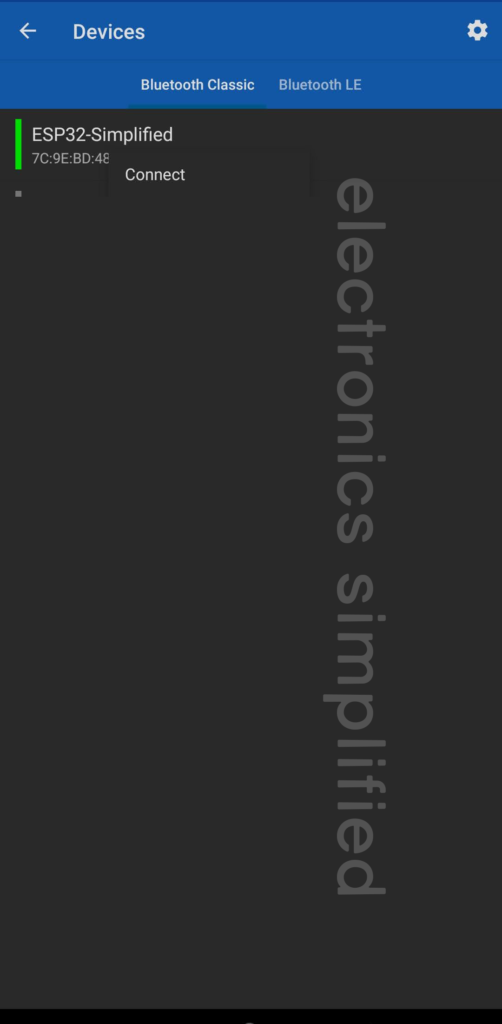 Now open the Serial Bluetooth App and connect to your Paired device
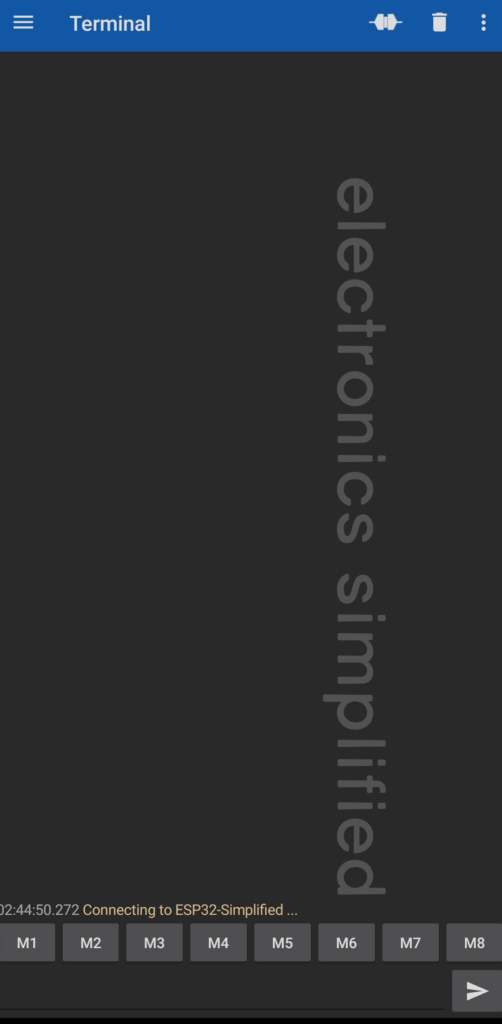 Your Smartphone will try to connect to the Bluetooth
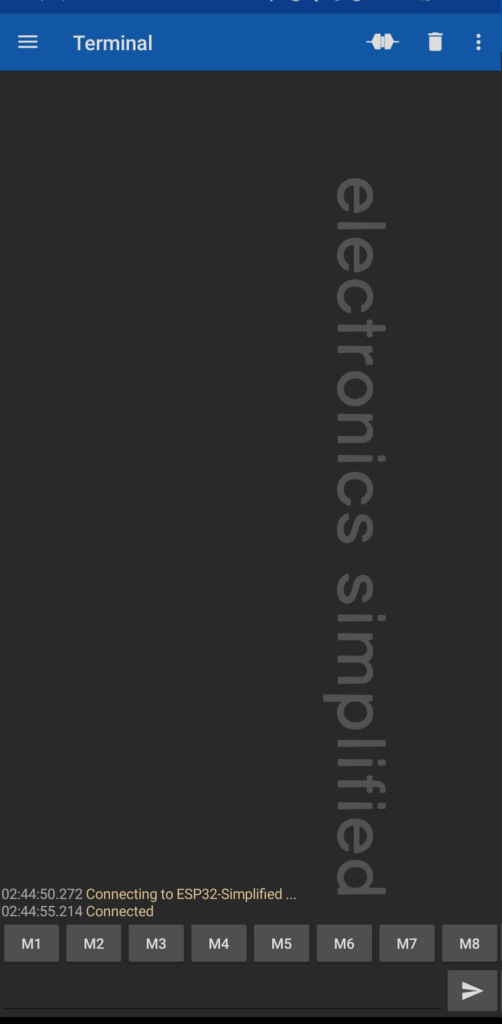 Connected message will be displayed on the Screen on successful connection
Now if you had to perform all the steps while the Serial Monitor of the Arduino IDE was running you would see the following :
Note : You will have to press the reset or boot button the ESP32 so that the Bluetooth resets its connection.
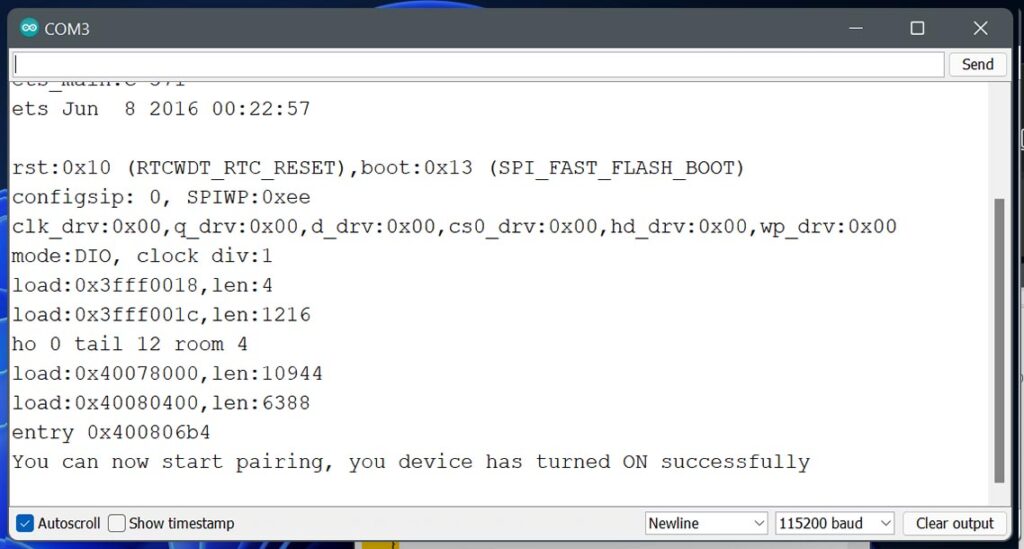 Your ESP32 is ready to be paired after your run the Serial monitor.
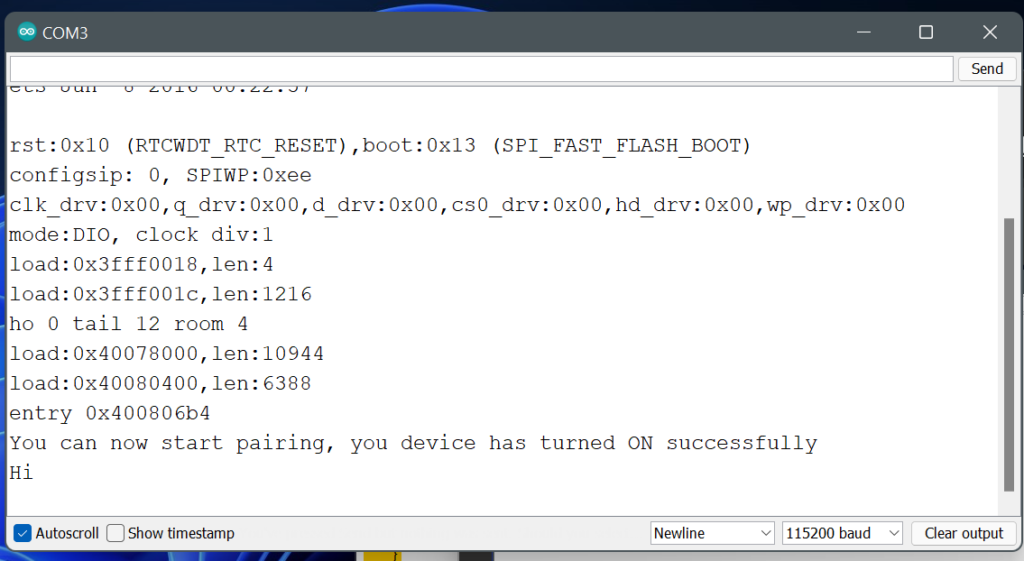 "Hi" - Message received from the smartphone terminal
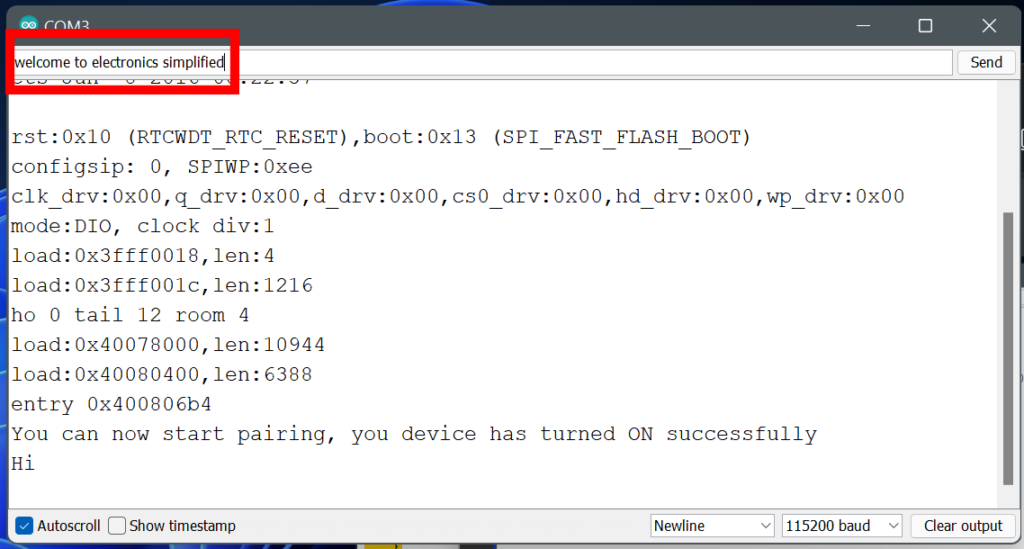 Messsage sent from the Serial Monitor
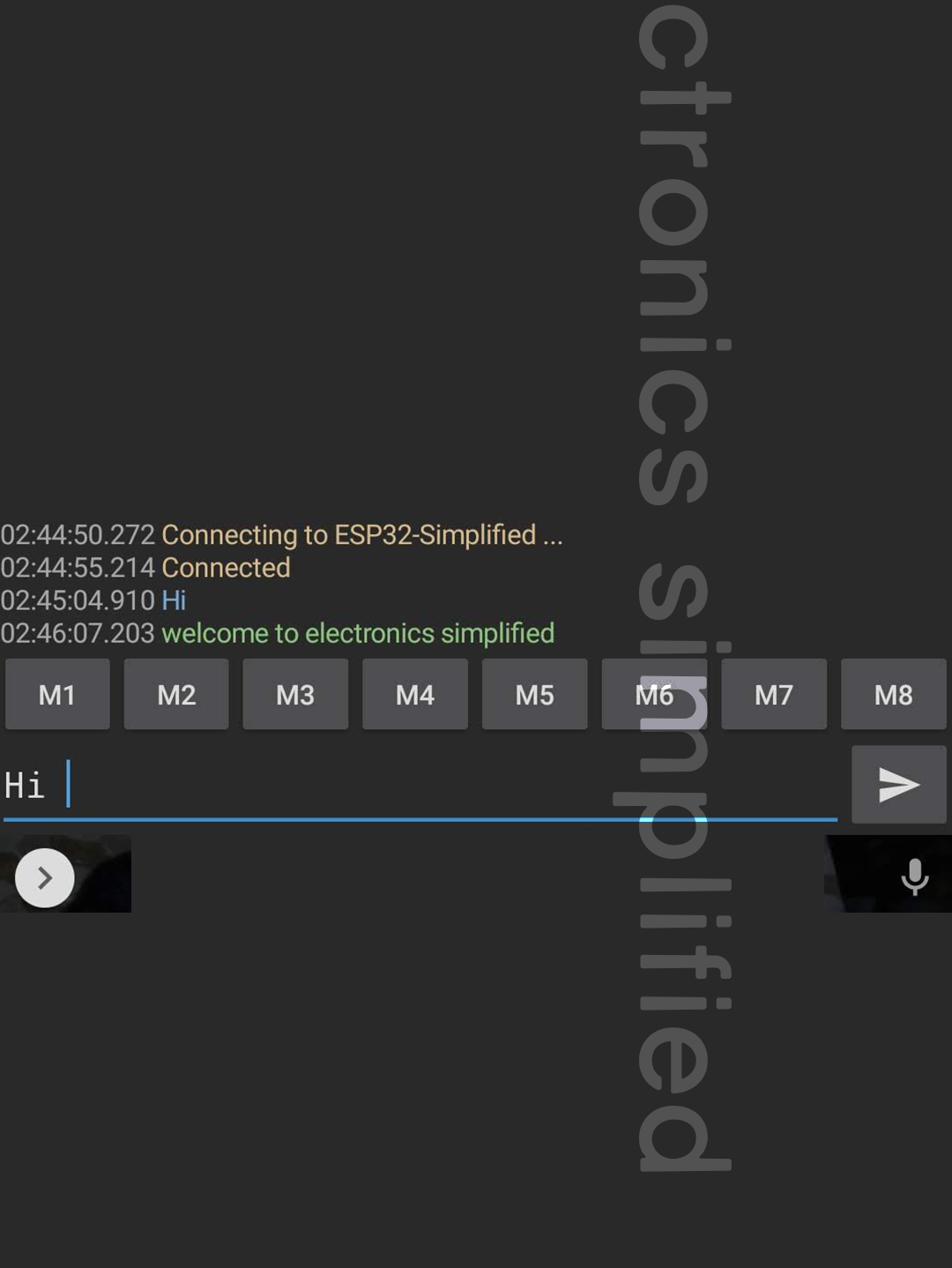 Message received by the Smartphone
Conclusion
We have now learnt how to use the Classic Bluetooth on the ESP32. Bluetooth might get outdated, but the improvements can't keep it out of the market. Once your ESP32 can communicate on the Bluetooth range, you can now send commands to the ESP32 to perform more complex tasks. You can now setup sensors, actuators and could read or control them over Bluetooth. For more tutorials click here